> ## Documentation Index
> Fetch the complete documentation index at: https://assemblyai.com/docs/llms.txt
> Use this file to discover all available pages before exploring further.
# Integrate Make with AssemblyAI
[Make](https://make.com/) (formerly Integromat) is a workflow automation tool that lets you integrate various services together without requiring coding knowledge.
With the AssemblyAI app for Make, you can use our AI models to process audio data by transcribing it with speech recognition models, analyzing it with speech understanding models, and building generative features on top of it with LLMs.
You can supply audio to the AssemblyAI app and connect the output of our models to other services in your Make scenarios.
## Quickstart
Create or edit a scenario in Make.
Add a new module, search for AssemblyAI, and select the module that you want to use.
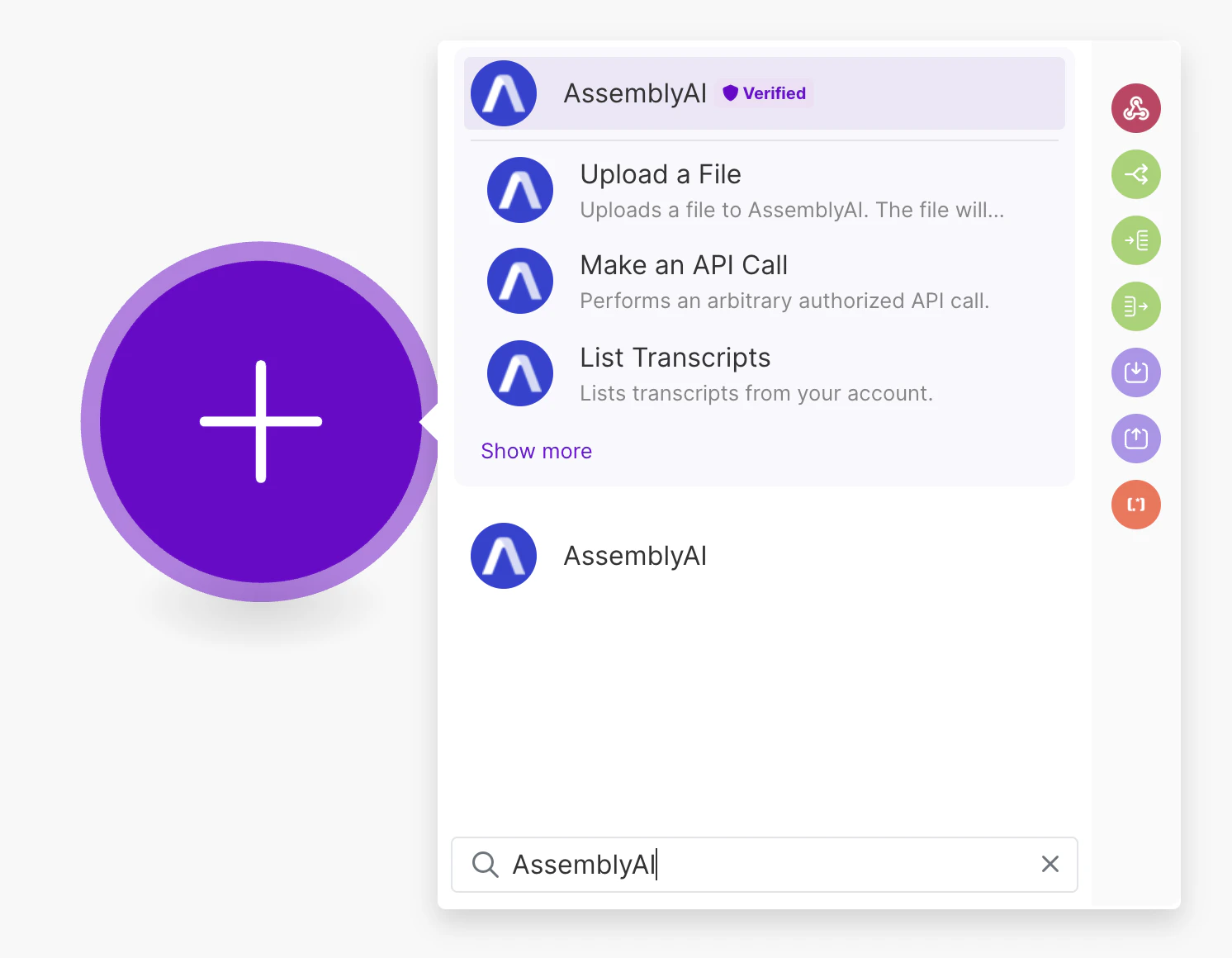 Select the module that you want to use.
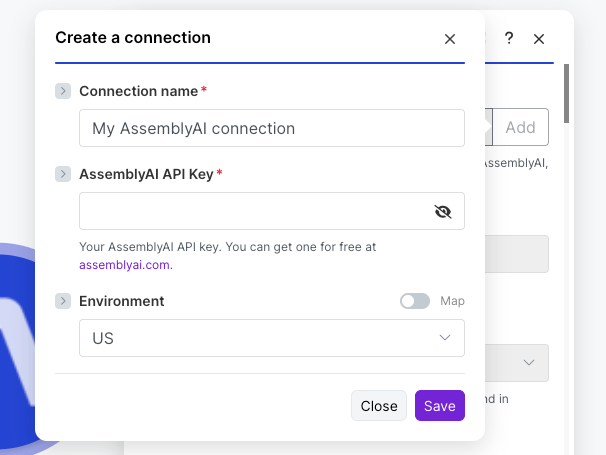
 Create a new connection or select an existing one.
In **AssemblyAI API Key**, enter the API key from your [AssemblyAI dashboard](https://www.assemblyai.com/dashboard/home). In **Environment**, select the [region you would like to use](/pre-recorded-audio/select-the-region). You must select either US or EU. Click **Save**.
Create a new connection or select an existing one.
In **AssemblyAI API Key**, enter the API key from your [AssemblyAI dashboard](https://www.assemblyai.com/dashboard/home). In **Environment**, select the [region you would like to use](/pre-recorded-audio/select-the-region). You must select either US or EU. Click **Save**.
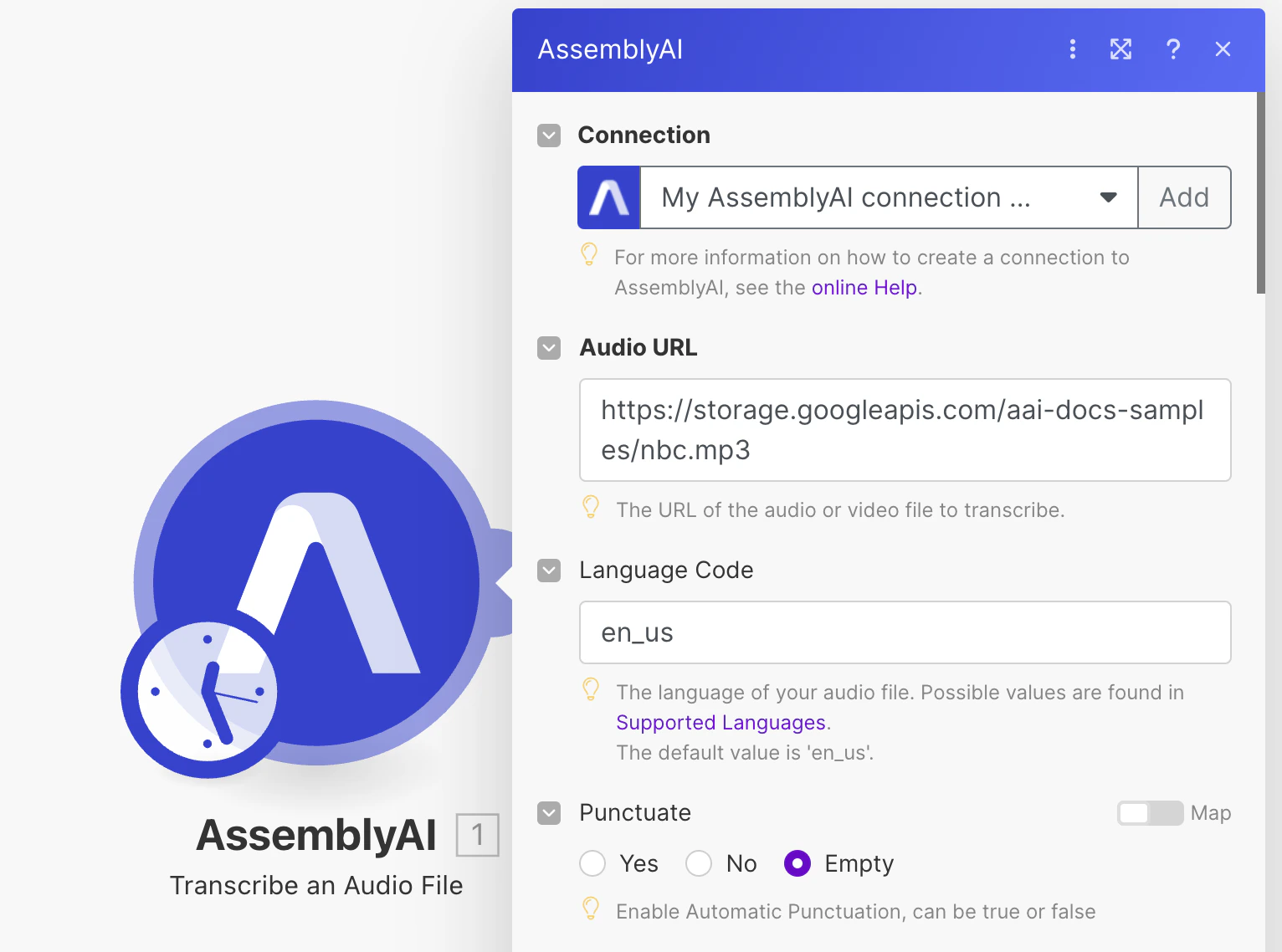
 Finally, configure your AssemblyAI module. Continue reading to learn more about all the available modules.
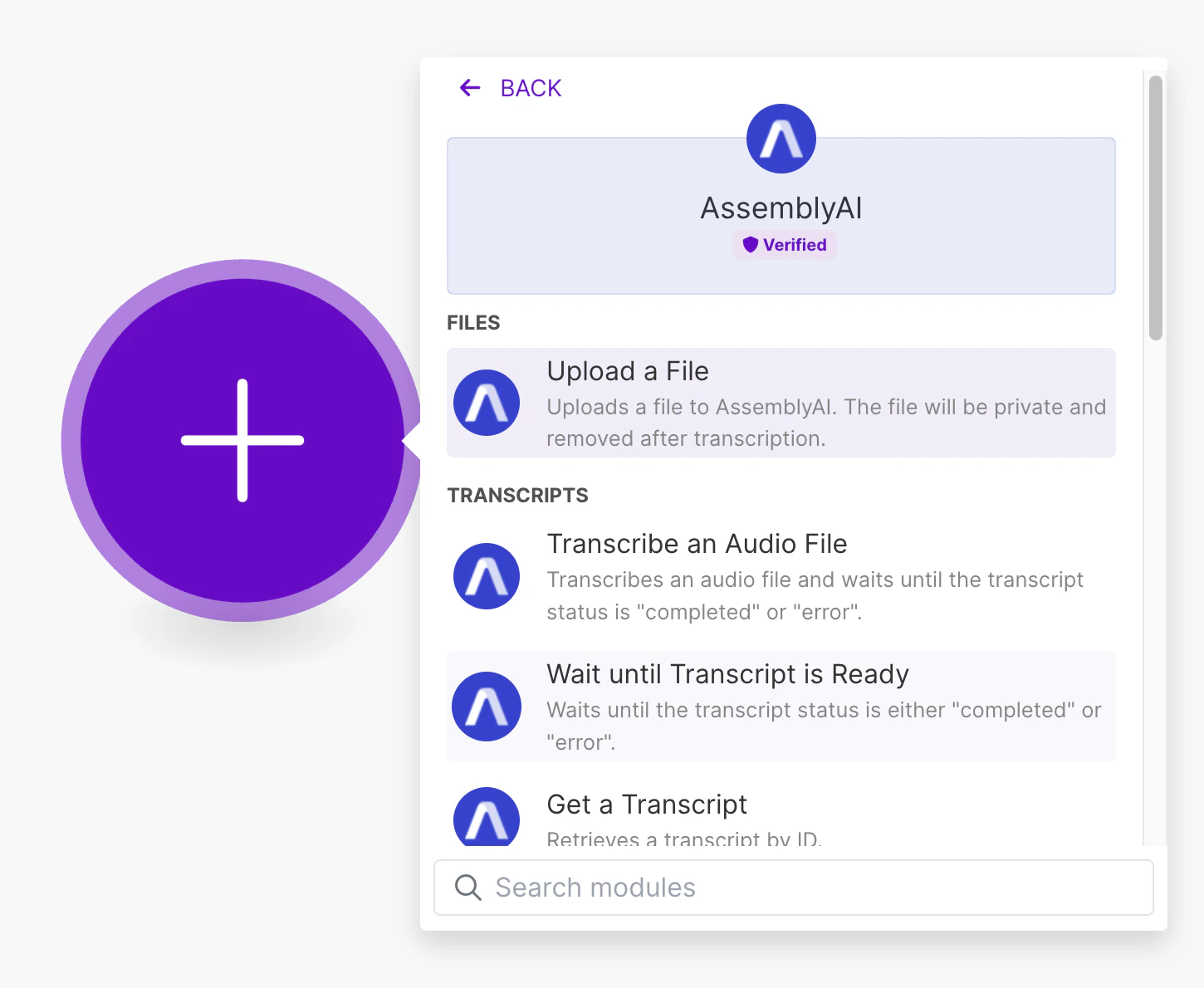
 ## AssemblyAI app modules
The AssemblyAI app for Make provides the following modules:
### Files
#### Upload a File
Upload an audio file to AssemblyAI so you can transcribe it.
You can pass the `Upload URL` output field to the `Audio URL` input field of [Transcribe an Audio File](#transcribe-an-audio-file) module.
### Transcripts
#### Transcribe an Audio File
Transcribe an audio file and wait until the transcript has completed or failed.
Configure the `Audio URL` field with the URL of the audio file you want to transcribe.
The `Audio URL` must be accessible by AssemblyAI's servers.
If you don't have a publicly accessible URL, you can use the [Upload a File](#upload-a-file) module to upload the audio file to AssemblyAI.
If you don't want to wait until the transcript is ready, change the `Wait until Transcript is Ready` parameter to `No` under **Show advanced settings**.
Configure your desired [Speech Understanding models](/speech-understanding)
when you create the transcript. The results of the models will be included in
the transcript output.
#### Wait until Transcript is Ready
Wait for an existing transcript to be ready.
This module will complete when the status of the transcript changes to "completed" or "error".
#### Watch for Transcript Ready Notification
Create a webhook URL to receive a notification when a transcript is ready.
When the transcript is ready, the webhook will be invoked with the transcript status and ID.
The status will be "completed" or "error".
#### Get a Transcript
Retrieve a transcript by ID.
#### Get Paragraphs of a Transcript
Retrieve the paragraphs of a transcript.
You can only invoke this module after the transcript is completed.
#### Get Sentences of a Transcript
Retrieve the sentences of a transcript.
You can only invoke this module after the transcript is completed.
#### Get Subtitles for a Transcript
Create SRT or VTT subtitles for a transcript.
You can only invoke this module after the transcript is completed.
#### Get Redacted Audio of a Transcript
First, you need to configure PII audio redaction using these fields when you create the transcript:
* `Redact PII`: `Yes`
* `Redact PII Audio`: `Yes`
* `Redact PII Policies`: Configure at least one PII policy
Then, you can use this module to retrieve the redacted audio of the transcript.
You can only invoke this module after the transcript is completed.
#### Search for Words in a Transcript
Search for words in a transcript.
You can only invoke this module after the transcript is completed.
#### List Transcripts
Paginate over all transcripts.
#### Delete a Transcript
Delete a transcript by ID.
Deleting a transcript does not delete the transcript resource itself, but removes the data from the resource and marks it as deleted.
You can only invoke this module after the transcript status is "completed" or
"error".
### Other modules
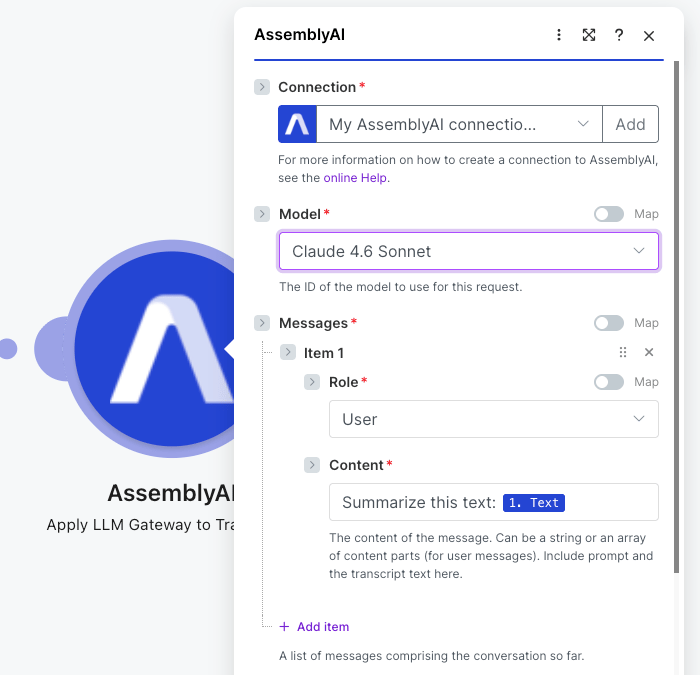
#### Apply LLM Gateway to Transcripts
Send a message to [LLM Gateway](/llm-gateway/chat-completions).
Configure the `Model` field with the model you want to use, and the `Role` and `Content` fields to build your message.
See [Available models](/llm-gateway/available-models) for the list of supported models, and [Cloud Endpoints and Data Residency](/llm-gateway/cloud-endpoints-and-data-residency) for which models are available in each region.
To apply LLM Gateway to a transcript, map the `Text` output field from the [Transcribe an Audio File](#transcribe-an-audio-file) module into the `Content` field.
## AssemblyAI app modules
The AssemblyAI app for Make provides the following modules:
### Files
#### Upload a File
Upload an audio file to AssemblyAI so you can transcribe it.
You can pass the `Upload URL` output field to the `Audio URL` input field of [Transcribe an Audio File](#transcribe-an-audio-file) module.
### Transcripts
#### Transcribe an Audio File
Transcribe an audio file and wait until the transcript has completed or failed.
Configure the `Audio URL` field with the URL of the audio file you want to transcribe.
The `Audio URL` must be accessible by AssemblyAI's servers.
If you don't have a publicly accessible URL, you can use the [Upload a File](#upload-a-file) module to upload the audio file to AssemblyAI.
If you don't want to wait until the transcript is ready, change the `Wait until Transcript is Ready` parameter to `No` under **Show advanced settings**.
Configure your desired [Speech Understanding models](/speech-understanding)
when you create the transcript. The results of the models will be included in
the transcript output.
#### Wait until Transcript is Ready
Wait for an existing transcript to be ready.
This module will complete when the status of the transcript changes to "completed" or "error".
#### Watch for Transcript Ready Notification
Create a webhook URL to receive a notification when a transcript is ready.
When the transcript is ready, the webhook will be invoked with the transcript status and ID.
The status will be "completed" or "error".
#### Get a Transcript
Retrieve a transcript by ID.
#### Get Paragraphs of a Transcript
Retrieve the paragraphs of a transcript.
You can only invoke this module after the transcript is completed.
#### Get Sentences of a Transcript
Retrieve the sentences of a transcript.
You can only invoke this module after the transcript is completed.
#### Get Subtitles for a Transcript
Create SRT or VTT subtitles for a transcript.
You can only invoke this module after the transcript is completed.
#### Get Redacted Audio of a Transcript
First, you need to configure PII audio redaction using these fields when you create the transcript:
* `Redact PII`: `Yes`
* `Redact PII Audio`: `Yes`
* `Redact PII Policies`: Configure at least one PII policy
Then, you can use this module to retrieve the redacted audio of the transcript.
You can only invoke this module after the transcript is completed.
#### Search for Words in a Transcript
Search for words in a transcript.
You can only invoke this module after the transcript is completed.
#### List Transcripts
Paginate over all transcripts.
#### Delete a Transcript
Delete a transcript by ID.
Deleting a transcript does not delete the transcript resource itself, but removes the data from the resource and marks it as deleted.
You can only invoke this module after the transcript status is "completed" or
"error".
### Other modules
#### Apply LLM Gateway to Transcripts
Send a message to [LLM Gateway](/llm-gateway/chat-completions).
Configure the `Model` field with the model you want to use, and the `Role` and `Content` fields to build your message.
See [Available models](/llm-gateway/available-models) for the list of supported models, and [Cloud Endpoints and Data Residency](/llm-gateway/cloud-endpoints-and-data-residency) for which models are available in each region.
To apply LLM Gateway to a transcript, map the `Text` output field from the [Transcribe an Audio File](#transcribe-an-audio-file) module into the `Content` field.
 #### Make an API Call
Make your own REST API HTTP requests to the AssemblyAI API using your existing connection.
## Additional resources
You can learn more about using Make with AssemblyAI in these resources:
* [Iterate Over Speaker Labels in Make](/pre-recorded-audio/guides/make-speaker-labels)
* [Redact PII in Audio with Make and AssemblyAI](https://www.assemblyai.com/blog/redact-pii-audio-with-make/)
* [Make Integration page for AssemblyAI](https://www.make.com/en/integrations/assembly-ai)
* [AssemblyAI Make App Invitation Link](https://us1.make.com/app/invite/f21437a4d43b63efc8ee9aec385d9f10)
#### Make an API Call
Make your own REST API HTTP requests to the AssemblyAI API using your existing connection.
## Additional resources
You can learn more about using Make with AssemblyAI in these resources:
* [Iterate Over Speaker Labels in Make](/pre-recorded-audio/guides/make-speaker-labels)
* [Redact PII in Audio with Make and AssemblyAI](https://www.assemblyai.com/blog/redact-pii-audio-with-make/)
* [Make Integration page for AssemblyAI](https://www.make.com/en/integrations/assembly-ai)
* [AssemblyAI Make App Invitation Link](https://us1.make.com/app/invite/f21437a4d43b63efc8ee9aec385d9f10)